

 最后编辑:2021-04-24
- 资源介绍
- 更新记录
- 安装教程

WordPress如何在后台文章列表页添加款姐编辑特色图像功能
在文章列表编辑特色图像,看到这句话大概就知道今天要分享的是什么功能了。
具体效果如下图所示:
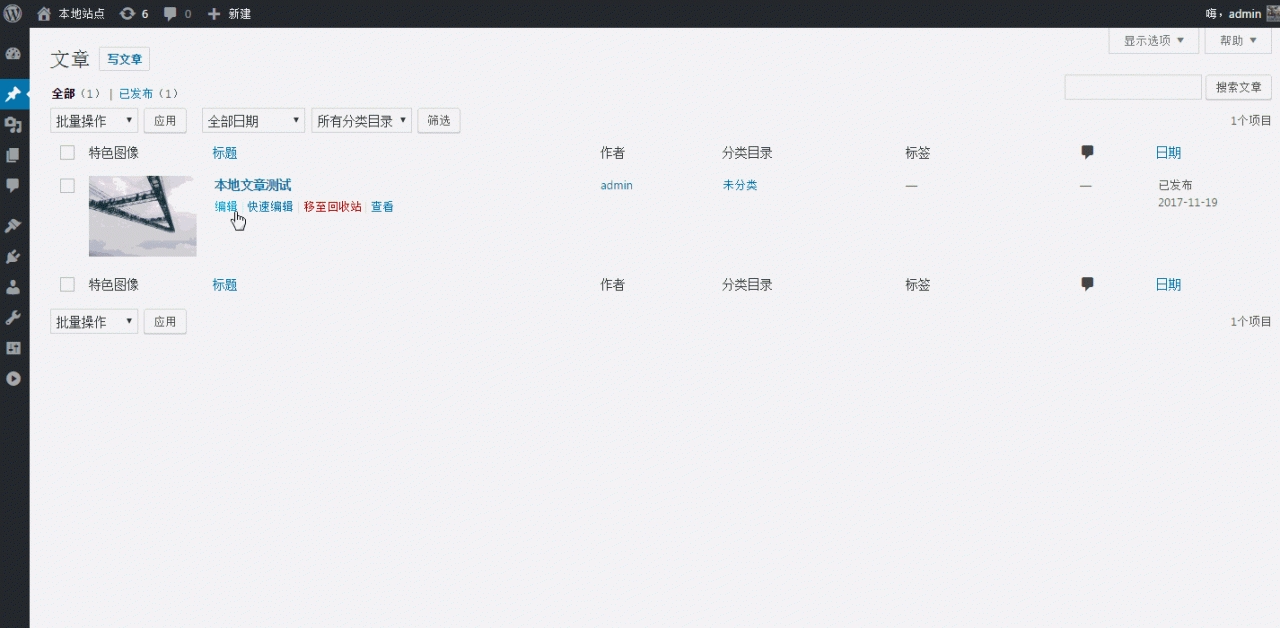
这是一个非常实用的功能,它能使我们在WordPress后台编辑文章时方便很多。首先在主题functions.php中添加
//后台开启文章缩略图
add_theme_support( ‘post-thumbnails’ );
// 添加数组到文章列表
add_filter(‘manage_post_posts_columns’, ‘lb_featured_image_column’);
function lb_featured_image_column( $column_array ) {
$column_array = array_slice( $column_array, 0, 1, true )
+ array(‘featured_image’ => ‘特色图像’)
+ array_slice( $column_array, 1, NULL, true );
return $column_array;
}
// 使用钩子完善数组
add_action(‘manage_posts_custom_column’, ‘lb_render_the_column’, 10, 2);
function lb_render_the_column( $column_name, $post_id ) {
if( $column_name == ‘featured_image’ ) {
if( has_post_thumbnail( $post_id ) ) {
$thumb_id = get_post_thumbnail_id( $post_id );
echo ‘<img data-id=”‘ . $thumb_id . ‘” src=”‘%20.%20wp_get_attachment_url(%20$thumb_id%20)%20.%20′” />’;
} else {
echo ‘<img data-id=”-1″ src=”‘%20.%20get_stylesheet_directory_uri()%20.%20’/placeholder.png” />’;
}
}
}
// CSS美化数组
add_action( ‘admin_head’, ‘lb_custom_css’ );
function lb_custom_css(){
echo ‘<style>
#featured_image{
width:120px;
}
td.featured_image.column-featured_image img{
max-width: 100%;
height: auto;
}
/* some styles to make Quick Edit meny beautiful */
#lb_featured_image .title{margin-top:10px;display:block;}
#lb_featured_image a.lb_upload_featured_image{
display:inline-block;
margin:10px 0 0;
}
#lb_featured_image img{
display:block;
max-width:200px !important;
height:auto;
}
#lb_featured_image .lb_remove_featured_image{
display:none;
}
</style>’;
}
// 添加JS代码使特色图像可以快速编辑和更新,首先排队加载WordPress默认上传
add_action( ‘admin_enqueue_scripts’, ‘lb_include_myuploadscript’ );
function lb_include_myuploadscript() {
if ( ! did_action( ‘wp_enqueue_media’ ) ) {
wp_enqueue_media();
}
}
// 后台文章页面添加快速编辑字段
add_action(‘quick_edit_custom_box’, ‘lb_add_featured_image_quick_edit’, 10, 2);
function lb_add_featured_image_quick_edit( $column_name, $post_type ) {
if ($column_name != ‘featured_image’) return;
echo ‘<fieldset id=”lb_featured_image” class=”inline-edit-col-left”>
<div class=”inline-edit-col”>
<span class=”title”>特色图像</span>
<div>
<a href=”#” rel=”external nofollow” rel=”external nofollow” class=”lb_upload_featured_image”>设置特色图像</a>
<input type=”hidden” name=”_thumbnail_id” value=”” />
</div>
<a href=”#” rel=”external nofollow” rel=”external nofollow” class=”lb_remove_featured_image”>移除特色图像</a>
</div></fieldset>’;
}
// 后台文章页面添加更新保存
add_action(‘admin_footer’, ‘lb_quick_edit_js_update’);
function lb_quick_edit_js_update() {
global $current_screen;
if (($current_screen->id != ‘edit-post’) || ($current_screen->post_type != ‘post’))
return;
?><script>
jQuery(function($){
$(‘body’).on(‘click’, ‘.lb_upload_featured_image’, function(e){
e.preventDefault();
var button = $(this),
custom_uploader = wp.media({
title: ‘设置特色图像’,
library : { type : ‘image’ },
button: { text: ‘设置特色图像’ },
}).on(‘select’, function() {
var attachment = custom_uploader.state().get(‘selection’).first().toJSON();
$(button).html(‘<img src=”‘%20+%20attachment.url%20+%20′” />’).next().val(attachment.id).parent().next().show();
}).open();
});
$(‘body’).on(‘click’, ‘.lb_remove_featured_image’, function(){
$(this).hide().prev().val(‘-1’).prev().html(‘设置特色图像’);
return false;
});
var $wp_inline_edit = inlineEditPost.edit;
inlineEditPost.edit = function( id ) {
$wp_inline_edit.apply( this, arguments );
var $post_id = 0;
if ( typeof( id ) == ‘object’ ) {
$post_id = parseInt( this.getId( id ) );
}
if ( $post_id > 0 ) {
var $edit_row = $( ‘#edit-‘ + $post_id ),
$post_row = $( ‘#post-‘ + $post_id ),
$featured_image = $( ‘.column-featured_image’, $post_row ).html(),
$featured_image_id = $( ‘.column-featured_image’, $post_row ).find(‘img’).attr(‘data-id’);
if( $featured_image_id != -1 ) {
$( ‘:input[name=”_thumbnail_id”]’, $edit_row ).val( $featured_image_id ); // ID
$( ‘.lb_upload_featured_image’, $edit_row ).html( $featured_image ); // 图像 HTML
$( ‘.lb_remove_featured_image’, $edit_row ).show(); // 移除链接
}
}
}
});
</script>
<?php
}
这篇WordPress如何在文章列表编辑特色图像的教程到此就结束了。
猜你喜欢
-
RIPRO修改-新增站长导航页面
2021-04-24 -
Ripro主题弹窗公告美化
2021-04-25 -
WordPress获取文章所属分类名称、分类ID、分类别名
2021-04-25 -
the_posts_pagination()函数
2021-04-26 -
非常好用的WordPress 评论增强插件 wpDiscuz
2021-04-24 -
WordPress主题响应式设计+新闻杂志主题Newspaper中文版V10.3.6.1含子主题
2021-04-24 -
安卓软件推荐 安卓微商做图神器 聊天转账红包
2021-04-25 -
comment_form()函数
2021-04-26 -
确定网站关键词的方法
2021-04-24 -
the_excerpt()函数
2021-04-26
-
WordPress获取本周/今日/24小时内更新的文章数量
2021-04-25 -
add_menu_page()函数
2021-04-26 -
PS一键换天空插件
2021-04-25 -
ripro美化——纯标题改成三栏
2021-04-25 -
【WP仿小米社区主题】简约大气小米网站网格博客模板
2021-04-22 -
WordPress响应式轻拟物主题niRvana星海美化二开版
2021-04-24 -
add_meta_box()函数
2021-04-26 -
Gamez v1.0 – 游戏电影音乐点评WordPress主题
2021-04-24 -
WordPress不可忽视的面包屑导航SEO优化技巧
2021-04-25 -
RIPRO主题美化-列表页面右上角3个彩色圆点效果
2021-04-24
猜你在找

常见问题FAQ
- 免费下载或者VIP会员专享资源能否直接商用?
- 本站所有资源版权均属于原作者所有,这里所提供资源均只能用于参考学习用,请勿直接商用。若由于商用引起版权纠纷,一切责任均由使用者承担。更多说明请参考 VIP介绍。
- 提示下载完但解压或打开不了?
- 找不到素材资源介绍文章里的示例图片?
- 大资源

- 2021-04-24Hi,初次和大家见面了,请多关照!
